email organization
Organize Your Email Inbox with Two Action Folders
Organize your email inbox with two simple folders: keep your tasks in To do, track replies in Waiting, and follow up without losing context.
 Mailamber Team11 min read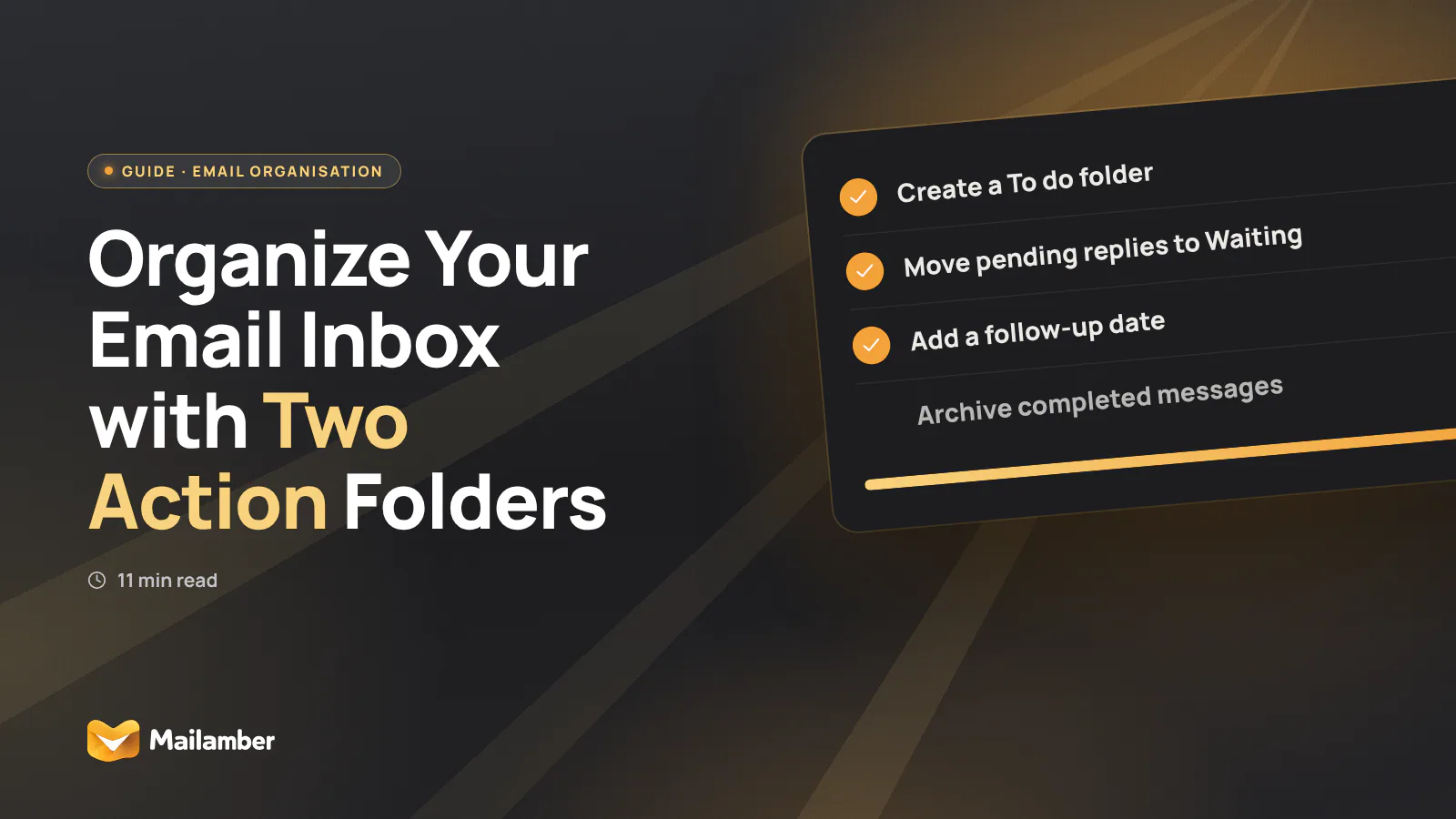
The two-folder email method separates messages you must act on from messages waiting for someone else, so every open task has a clear next step. This guide shows you how to set it up, process messages quickly, choose follow-up dates, and fix the common problems that make action folders feel messy.
Why two action folders work better than many topic folders
Topic folders answer the question, “What is this email about?” Action folders answer the question, “What must happen next?”
That difference matters when your inbox contains a mixture of approvals, documents, meeting arrangements, personal messages and ongoing work. A topic folder may tell you that an email is about a project. It does not tell you whether you need to reply, whether someone else owes you an answer, or whether the message is already finished.
Two action folders keep that responsibility visible:
- To do: you need to write, decide, check, send, approve or otherwise act.
- Waiting: you have done your part, and another person or organisation must respond.
- Archive: no action is open, but you may want to keep the message.
You can still use topic folders for reference. They simply stop carrying the burden of task management. The action folders become a short working list, while topic folders become a library.
This approach also reduces a common ambiguity: an email can be important without being yours to handle today. If you have sent the requested document and are waiting for confirmation, the message belongs in Waiting, not To do.
Set up the “To do” and “Waiting” workflow
You can use this method in Gmail, Outlook, Apple Mail, Thunderbird or another email app. Menu names vary slightly, but the actions are usually called New folder, Create folder, Move to, Archive and Snooze.
1. Create the two folders
In your email app, open the folder list and choose New folder or Create folder.
Create:
- To do
- Waiting
Keep the names short. They should be easy to spot in a sidebar and easy to select on a phone.
If your provider uses labels instead of folders, create two labels with the same names. The method still works. The important point is that both locations represent responsibility, not subject matter.
2. Decide what belongs in each folder
Use this simple test:
- Can I complete the next action myself? Move the message to To do.
- Have I completed my part and need someone else to respond? Move it to Waiting.
- Is no action needed? Archive it or keep it in a reference folder.
- Is the action very small and possible right now? Do it immediately, then archive the message.
A message asking you to approve an invoice belongs in To do. A message confirming that you sent the invoice and are waiting for payment belongs in Waiting. A newsletter or receipt that needs no action belongs in the archive.
3. Give every Waiting message a date
“Waiting” is useful only when you know when to look again.
Choose a date based on the normal response time and the importance of the request. For example:
- A colleague confirming a meeting: check again tomorrow.
- A supplier sending a quotation: check in three working days.
- A public authority responding to a formal request: use the stated deadline or your own reasonable review date.
- A non-urgent personal reply: check next week.
Add the date in one consistent place. You could use a calendar entry, an email reminder, a task app or the message’s Snooze function. The exact tool matters less than being able to find the message when the date arrives.
For a message with a deadline, include the reason in the note. “Follow up on quote” is more useful than “Check email”.
4. Add a simple naming rule for follow-ups
When you send an important request, make the next step clear in the message itself. You might write, “Could you send the signed form by Thursday?” or “Please confirm whether Tuesday works.”
This helps the recipient and gives you a clear follow-up point. If you need a polite structure for a later reminder, see this guide to when to follow up after no response.
- Act now if the next action takes only a few minutes, then archive the message.
- Move it to To do when you need to write, decide, check, approve or send.
- Move it to Waiting when someone else must respond, and add a follow-up date.
- Archive it when no action remains, or snooze it until a specific future time.
Process each email with one decision at a time
Do not try to organise the entire meaning of a message before deciding what happens next. Read enough to make one decision, then take that decision.
Start with the sender and request
Ask what the email wants from you. Look for the actual request, not just the topic.
An email titled “Budget update” might require you to approve a figure. Another with the same subject might only inform you that the budget was approved. Their topics match, but their next actions differ.
If the request is unclear, you have two options:
- Send a short clarification and move the message to Waiting.
- Put it in To do if you need to investigate before replying.
Use the four-action rule
For every message, choose one of four actions:
- Act now if the task is short and clear.
- Move to To do if you need focused time.
- Move to Waiting if another person must respond.
- Archive or delete if there is no open task.
Avoid leaving the message in the inbox “for later”. That creates a second, less visible action list. If you cannot decide, make the smallest useful decision: either define the next action or ask for the missing information.
Keep one open task per message where possible
A long conversation may contain several requests. If possible, reply to the easy part and turn the remaining work into a separate task. Keep the email in To do only if it still represents a real next action.
For example, a colleague asks you to check a contract and confirm a meeting time. You can confirm the time immediately, then keep the thread in To do for the contract review. Add a note outside the email if you need more detail.
Archive after the action is complete
Archive is not a failure to organise. It is the correct destination for a completed conversation.
Once you have replied, sent a document or made the required decision, remove the message from To do. If you expect a response, move it to Waiting. If not, archive it.
If you need the message later, use email search rather than keeping completed conversations in an action folder.
Worked example: from a crowded inbox to a clear follow-up list
Imagine opening an inbox with these messages:
- “Please approve the revised budget”
- “Your application has been received”
- “Contract attached for review”
- “Re: Tuesday meeting”
- “Invoice 1842”
- “Could you send the product photos?”
- “Thanks, I have received the signed form”
- “Monthly customer newsletter”
Process them one at a time:
- Approve the revised budget goes to To do. You must review and decide.
- Application received is archived. It confirms receipt but asks nothing from you.
- Contract attached for review goes to To do. You need focused reading time.
- Re: Tuesday meeting may be acted on now if you can confirm the time in a short reply. If you have replied and need the other person to confirm, move it to Waiting with a date.
- Invoice 1842 goes to To do if you must approve or pay it. If it is only a receipt for a completed payment, archive it.
- Send the product photos goes to To do if you have the photos ready. If you have asked a colleague to provide them, move the thread to Waiting.
- Received the signed form is usually archived. If the confirmation triggers a next step for you, move it to To do instead.
- Monthly customer newsletter is archived, deleted or unsubscribed from, depending on its value.
After this pass, the inbox no longer needs to hold your whole memory. To do contains work you own. Waiting contains promises or replies you are monitoring. The archive contains information without an open task.
Build a small review habit
The method works best when you review each folder at a predictable time.
Check To do when you plan your work. Choose one message and define the next physical action. “Work on contract” is vague. “Read sections 4–6 and list changes” is easier to start.
Check Waiting at the beginning or end of your working day, depending on how often replies matter. Look only at messages whose follow-up date has arrived. If the date has not arrived, leave the message alone.
When a reply arrives, remove the old waiting message from the folder. Then decide what happens next:
- Archive it if the matter is complete.
- Move it to To do if the reply creates work for you.
- Move it back to Waiting if you have responded and need another answer.
Some email apps offer follow-up reminders that can help with this review. Mailamber, for example, includes Smart folders such as To reply and Snoozed, which can surface messages needing attention later without replacing your own responsibility-based folders.
You can also use Snooze for a message that should return at a specific time. See the guide to snoozing an email for the practical details. Use snooze for timing; use Waiting for ownership. They solve related but different problems.
Common mistakes and troubleshooting
The folders fill up and become a second inbox
This usually means messages are being stored without a next action or date.
Open each message and write a short phrase describing what must happen. If no action remains, archive it. If someone else must respond, add a follow-up date or move it out of the folder until the date is relevant.
Waiting becomes a place for every unanswered email
Not every unanswered email needs monitoring. A marketing message, an old conversation and a low-value request can be archived or deleted.
Keep a message in Waiting only when you have a reason to expect a response and a reason to follow up. If the matter no longer matters, close the loop by archiving it.
You forget to add follow-up dates
Make the date part of the move. Do not move a message to Waiting and promise yourself that you will add the date later.
If your email app supports reminders, set one immediately. If it does not, add a calendar event with the message subject and a link to the conversation. A consistent habit is more reliable than a perfect system.
Conversations appear in the wrong folder
Email threads can change as new replies arrive. If a reply creates work for you, move the thread to To do. If you have answered and are now waiting, move it back to Waiting.
If your provider applies labels automatically, check whether a rule is moving messages unexpectedly. Keep automation simple at first. A rule that marks newsletters or receipts is safer than one that tries to infer responsibility.
You have too many old tasks in To do
Do a short reset. For each old message, choose one option:
- Complete the next action.
- Break the work into a separate task and keep only the useful email reference.
- Move it to Waiting with a date.
- Archive it because the work is no longer needed.
If a task has no clear next action, it is not ready to stay in To do. Clarify it or close it.
FAQ
Should I use folders or labels for this method?
Either works. Use folders if you prefer one visible location for each message, or labels if your email service lets a message appear in several useful views. The method depends on the responsibility distinction, not the storage style.
What should I do with emails that contain several tasks?
Choose the next task and keep the message in To do if you still need to act. Record the other tasks separately if they are substantial. After completing your part, move the message to Waiting only when another person genuinely owes you a response.
How long should I wait before sending a reminder?
Use the deadline or response time stated in the message. If none exists, consider the relationship, urgency and normal working pattern. A short, polite reminder is usually better than repeated messages sent without a clear reason.
Should I keep Waiting messages in the inbox too?
Usually not. Keeping them in both places creates duplicate work and makes the inbox harder to trust. Put the message in Waiting, then use a reminder, calendar date or snooze so it returns to your attention at the right time.
Can this method work with several email accounts?
Yes. Create the two folders in each account, or use a unified view if your email app supports one. Then apply the same responsibility rules everywhere. A shared naming system makes switching between personal and work accounts easier.
email organizationproductivityfollow-upinbox management
Newsletter
One calm email, every two weeks.
One email every two weeks: Mailamber news, guides on email and privacy, practical tips. No spam. Unsubscribe in one click.

Check your inbox
We’ve sent a confirmation link to . One click and you’re in.
Can’t find it? Take a look in your spam or Promotions tab.
Still nothing after a few minutes? Subscribe again with the same address and we’ll resend the link.

Read also
Official Mailamber guides on the same topic
- Automatic rules for incoming mailHow to create rules that mark as read, flag or move messages based on sender, subject, attachments or date, on your PC and on Android.
- Follow-up reminders when nobody repliesHow to have Mailamber remind you to follow up on an unanswered email after 24, 48 or 72 hours or a custom time, and how the reminder clears itself.
- How to install Mailamber on AndroidHow to install Mailamber from Google Play, sign in with your Mailamber account or create one, add your first mailbox and keep the app up to date.