email clients
Thunderbird alternative Windows: a practical comparison
Compare a Thunderbird alternative for Windows with Thunderbird across privacy, price, organisation and Android use before moving your mailboxes.
 Mailamber Team11 min read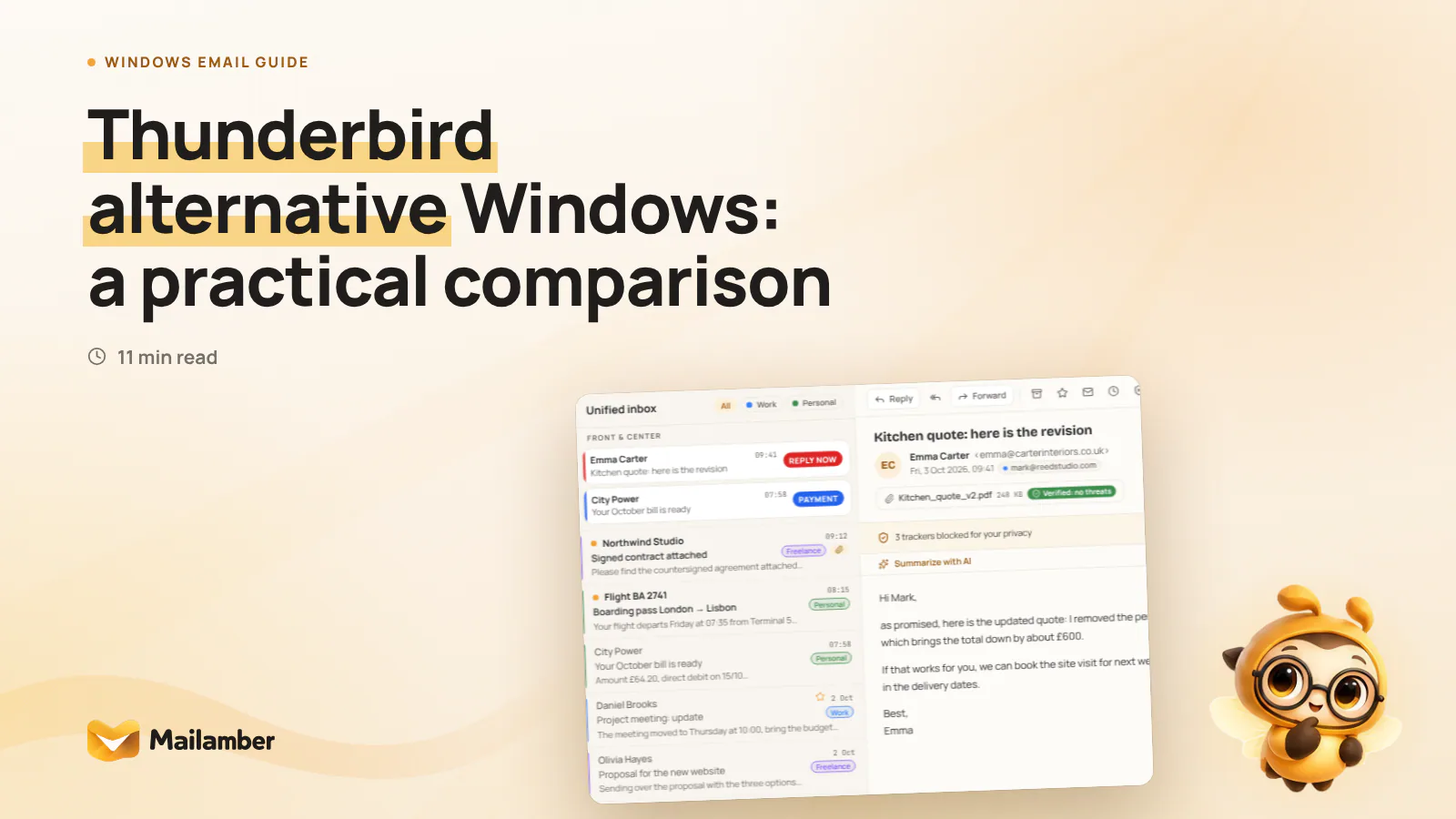
Mailamber and Thunderbird are email clients that connect to your mail provider so you can read and send messages, but they differ in setup, organisation, platform coverage and workflow features. This comparison helps you choose a thunderbird alternative for Windows by looking at privacy, price, daily organisation and the move between a PC and a phone.
What matters when choosing a Thunderbird alternative for Windows
The right client depends less on the number of features and more on how you want to work. Start by deciding which trade-offs feel comfortable.
1. How much setup do you want?
Thunderbird gives you a flexible foundation. You can change settings, organise accounts and extend the client with add-ons.
That control is useful if you enjoy shaping your tools. It also means more decisions. A feature you expect may need an extension, a setting change or a different workaround.
A guided client takes the opposite approach. It puts more common tasks into the main workflow, so you can spend less time assembling your setup.
2. How many mailboxes do you manage?
If you use separate personal, work and project accounts, account switching can become a daily interruption. Look for a unified inbox, clear account labels and useful views for unread or waiting messages.
A combined inbox is not automatically better. Some people prefer strict separation between work and personal mail. Others want one place to scan first thing in the morning.
3. Which devices matter now and later?
Windows may be your main computer, but your phone still affects the choice. Check whether the same client works on Android, macOS or Linux if those devices are part of your routine.
Also check feature parity. An app may exist on two platforms while some actions remain available only on the desktop version.
4. Where should your mail be processed?
Both clients in this comparison use local storage and processing for messages. That does not mean every optional service works locally.
For example, AI or tracking may involve additional processing. Read the privacy information and enable optional features only when you understand what they do.
Your email provider remains important too. The client connects to services such as Gmail, Outlook or another provider through standard account settings. It does not replace the provider’s spam filtering, account security or mailbox policies.
5. Which daily tasks should be built in?
Make a short list before you compare products:
- bringing several inboxes into one view;
- finding messages that need a reply;
- postponing a message until later;
- sending an email at a chosen time;
- reusing a regular reply;
- searching an old conversation;
- moving between Windows and Android.
These tasks are more useful comparison points than a long list of features you may never use.
The local-first workflow for Windows and Android
The local-first client uses a local-first architecture: emails, attachments and mailbox passwords stay on your device while the app connects directly to your provider over IMAP and SMTP with TLS.
Its servers handle account, plan, device, encrypted settings and optional services. Mail is not stored on those servers. Remote images and tracking pixels are blocked by default, and account credentials are protected with Windows DPAPI or Android Keystore.
This model may suit you if you want a clear separation between your email provider and the client. It also gives privacy controls a visible place in the everyday workflow.
What it does well
The main strength is a prepared organisation system. A unified inbox brings several accounts together, while smart folders can surface unread, snoozed, to-reply and starred messages.
Rules, Smart Priority and Smart spaces provide further ways to reduce manual sorting. If you prefer a simple routine, these tools can make the first inbox check less fragmented.
The app also works on Windows 10/11 and Android. One account can be used across a PC and phone, although not every feature is available on both. The Android and PC guide explains how the two apps work together.
Common repeat tasks are covered too. Templates support variables and HTML, while signatures help keep regular messages consistent. You can read the templates guide before deciding whether this workflow fits the way you write.
Scheduled sending and snoozing are available in the Windows workflow. Undo send gives you ten seconds to catch a small mistake after pressing Send. These are modest features, but they can be useful when your inbox doubles as a task list.
The Free plan costs €0 and includes one mailbox, one device, two templates and five snoozes or scheduled sends per month. Plus costs €2.99 per month or €24 per year, and Premium costs €5.99 per month or €49 per year, with VAT included. Check the current plans and prices because limits and prices can change.
Where it is less suitable
The main limitation is platform coverage. The client currently supports Windows 10/11 and Android. macOS and iOS are on the roadmap without announced dates, and there is no Linux app in the verified platform list.
Some actions are Windows-only for now. Outgoing attachments, Cc/Bcc, scheduled send, undo send and full-text search are not all available on Android. If you write and send most messages from your phone, check the mobile features guide before switching.
A guided workflow also leaves less room for deep customisation. If you want to choose from a broad extension ecosystem or alter the client in very specific ways, Thunderbird may be the better fit.
Optional AI features require explicit consent. Free AI priority and Smart spaces are available on every plan, while writing assistance and related tools are available on Plus and Premium. The text is not stored or used for training according to the supplied product information.
Tracking deserves similar care. Open detection is opt-in per message and can miss an open when images are blocked. It cannot guarantee that a recipient has read your email.
Thunderbird: when flexibility and control are the priority
Thunderbird is a free, open-source email client for Windows, macOS, Linux and Android. Its wider platform coverage is a clear advantage if your devices do not all use Windows.
What it does well
Thunderbird gives you a broad base that you can shape over time. You can add accounts, organise folders, adjust settings and install extensions for a more personal workflow.
That flexibility suits people who already know which add-ons they need. It also suits anyone who prefers open-source software and wants a desktop client without a subscription for core email access.
Unified Folders can provide combined views of messages. Templates are available through “Save As Template”, and standard MDN return receipts are supported. A return receipt still depends on recipient-side behaviour, so it is not proof that someone read a message.
Thunderbird also has a practical advantage for mixed-device households. You can use it across Windows, macOS and Linux, with an Android app available as well. This may matter more than a smoother initial setup if you regularly change operating systems.
Its privacy model is local too. Messages and address books are stored and processed on the device rather than sent to Mozilla. However, Thunderbird’s privacy information also refers to interaction and technical telemetry, so review the current settings instead of treating “local” as the whole privacy picture.
Where it is less suitable
Flexibility brings maintenance. You may need to find, install and update an extension for a task that another client includes in its standard workflow.
Timed scheduling is not built in as a native desktop feature. The Outbox can queue a message, but timed sending needs the Send Later add-on and Thunderbird running. Native email snooze is not available on desktop.
Thunderbird has no built-in AI feature in the base client according to the verified information used here. Thunderbird Assist is in development, and third-party add-ons exist. This is useful if you prefer not to have AI in your mail client, but less convenient if you want writing help without configuring another tool.
Thunderbird can also use an Italian PEC mailbox as an IMAP account, but it does not provide dedicated receipt matching. PEC, or Posta Elettronica Certificata, is an Italian certified email service that provides evidence of acceptance and delivery. If that evidence is central to your work, check how your provider and chosen client handle the receipts.
The two clients compared for Windows users
The figure below uses the verified dataset for the criteria most likely to matter to Windows users. It is a guide, not a universal verdict. Similar labels can still describe different workflows.
| Aspect | Mailamber | Thunderbird |
|---|---|---|
| Platforms | Windows 10/11, Android | Windows, macOS, Linux, Android |
| Price | Free; Plus €2.99/mo; Premium €5.99/mo (VAT incl.) | Free (open source) |
| Read receipts | Yes — Built-in open tracking ✓✓ (5/mo Free, 500 Plus) | Yes — MDN return receipts |
| PEC (Italian certified email) | Yes — PEC mailboxes with matched receipts (Plus/Premium) | Partial — PEC works as IMAP account |
| AI features | Yes — Free AI priority; writing assistant on Plus/Premium | No — None built-in; Thunderbird Assist in development |
| Where your data lives | Local-first: mail on device; opt-in AI via EU servers | Local client; mail stored on device, not sent to Mozilla |
| Local-first / offline | Yes — mail, attachments, passwords on device | Yes |
| Unified inbox | Yes — (Unified inbox + smart folders) | Yes — (Unified Folders; unified inbox on Android) |
| Templates | Yes — 2 on Free (HTML too), unlimited on Plus | Yes — (Save As Template) |
| Scheduled send | Partial — on Windows; not yet on Android | No — built-in scheduling; Send Later add-on |
| Snooze | Yes — (5/mo on Free, unlimited on Plus) | No |
Verified dataset checked 2026-10-12, except pricing checked 2026-10-14. Compare the workflow behind each feature, not just its label.
A few patterns stand out:
- Privacy: both clients use a local model for mail. The local-first client’s optional AI uses EU servers only after consent, while Thunderbird’s policy discusses local mail processing and technical telemetry.
- Price: Thunderbird’s core desktop client is free and open source. The other client has a Free plan plus paid plans with different mailbox, device and usage limits.
- Organisation: both can bring accounts together. The local-first client includes a unified inbox and smart folders, while Thunderbird offers Unified Folders and more scope for extension-based changes.
- Scheduling and snooze: the local-first client includes these features in its Windows workflow. Thunderbird requires an add-on for timed sending and does not have native email snooze.
- Platforms: Thunderbird covers more desktop operating systems. The other client focuses on Windows and Android, with some features differing between PC and phone.
- PEC: the local-first client supports matched acceptance and delivery receipts on Plus and Premium. Thunderbird can connect to PEC through IMAP but does not offer dedicated receipt matching.
Which client is right for you?
Choose the local-first client if you want less configuration
This is the better direction if you want several accounts, a unified inbox and built-in organisation without starting with extensions.
It may also suit you if your main devices are a Windows PC and an Android phone. First check the Android limitations for the actions you use most.
Choose Thunderbird if extensions are central to your work
Thunderbird is a strong choice when you want to assemble your own environment. It is especially practical if you already rely on particular add-ons or need a client across Windows, macOS and Linux.
Write down the extensions you depend on. Check that they are maintained and compatible with the version you plan to use.
Choose the local-first client if snoozing and scheduled send matter
If you treat your inbox as a light task list, built-in snoozing and Windows scheduling may save repeated manual steps.
Test scheduled sending with a non-critical message first. Confirm that your computer, connection and application setup support the routine you want.
Choose Thunderbird if you want a free open-source base
Thunderbird remains a sensible option if you prefer a free desktop client and are comfortable investing time in configuration.
Keep your provider’s security active whichever client you choose. Use a unique password and multi-factor authentication where your provider supports it.
Choose based on your real device mix
If you need macOS or Linux today, Thunderbird has the clearer fit. If you mainly use Windows and Android and want the same guided workflow across both, the local-first client may deserve a closer look.
Do not assume that a phone app reproduces every desktop feature. Compare the specific actions you perform, not only the list of supported platforms.
A practical way to decide without moving every mailbox at once
You do not need to migrate everything on the first day. A small trial gives you useful evidence and limits disruption.
- Choose one low-risk mailbox with a manageable amount of mail.
- List five daily tasks, such as search, snooze, templates or scheduling.
- Install the two clients separately and record setup time and friction.
- Test one real routine on Windows and the same routine on your phone.
- Keep your original client available until the new workflow feels reliable.
During the trial, check these points:
- Can you add the account without needing an unexpected provider setting?
- Can you find old messages quickly?
- Do notifications arrive in the way you expect?
- Are attachments and Cc/Bcc available on the device you use?
- Can you tell which mailbox a message belongs to?
- Does the privacy model match your preferences?
- Are the features you need included in the plan you would choose?
You can add a second mailbox after the first trial. This makes it easier to spot problems with account switching, folders or provider-specific sign-in.
For setup details, use the mailbox setup guide. It covers the different sign-in paths for common providers, including Microsoft and Gmail.
FAQ
Is this a good Thunderbird alternative for Windows?
It can be, especially if you want a guided local-first workflow, built-in organisation and Windows-to-Android continuity. Thunderbird remains a better fit when open-source customisation, extensions or macOS and Linux support are more important.
Is the local-first client free?
Yes. It has a Free plan at €0, with limits on mailboxes, devices and some monthly actions. Plus and Premium add capacity and features; check the current pricing page before choosing a plan.
Does Thunderbird support Android?
Yes. Thunderbird supports Windows, macOS, Linux and Android according to the verified platform information used here. The exact workflow can still differ between its desktop and mobile apps.
Which client is more private?
Both use local processing and storage for mail in the supplied comparison data. Privacy also depends on optional services, telemetry, account security and provider settings, so review each client’s current controls rather than choosing from the word “local” alone.
Can either client guarantee that an email was read?
No. Open tracking and Thunderbird’s MDN return receipts depend on recipient-side behaviour. Blocked images, unsupported settings or a recipient declining a receipt can prevent a reliable signal.
email clientswindowsthunderbirdprivacyproductivity
Newsletter
One calm email, every two weeks.
One email every two weeks: Mailamber news, guides on email and privacy, practical tips. No spam. Unsubscribe in one click.

Check your inbox
We’ve sent a confirmation link to . One click and you’re in.
Can’t find it? Take a look in your spam or Promotions tab.
Still nothing after a few minutes? Subscribe again with the same address and we’ll resend the link.

Read also
Official Mailamber guides on the same topic
- Getting started with MailamberFrom a free account to your first email in a few minutes, on Windows and Android: what you need, what to install and how to connect your mailbox.
- Mailamber on Android: what’s included and how it differs from the PCThe features of the Mailamber Android app compared with the Windows app, with the current differences in the composer, search, rules, snooze and attachments.
- How to add an email account to MailamberConnect a mailbox to Mailamber on Windows and Android with automatic server detection, Sign in with Microsoft, or manual IMAP/SMTP setup.