email batching
How Often to Check Email: Myth vs Routine
How often to check email without losing focus: learn what batching changes, when it fails, and how to build a calmer routine for urgent messages.
 Mailamber Team11 min read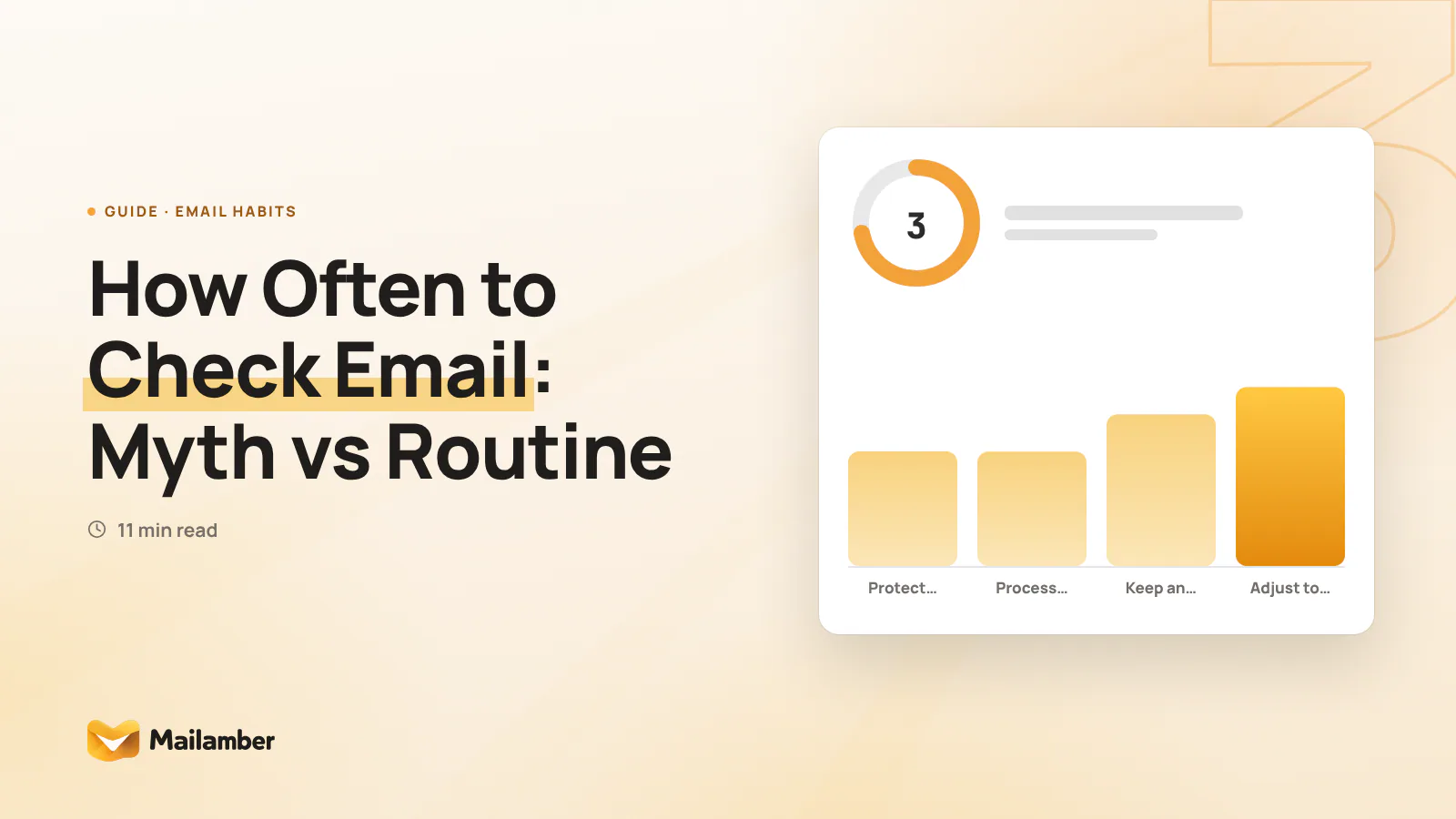
Email batching means reading and processing messages during planned time windows instead of reacting to every new-email alert. This guide separates useful practice from common myths, then helps you choose a rhythm that protects focus without making you unreachable.
What email batching really changes
Batching changes the moment when you make a decision. Instead of treating every alert as a request to stop, you collect messages and handle them during a defined window.
That does not make email less important. It gives email a boundary.
A useful batch is more than opening your inbox. It is a short session with a purpose:
- scan for messages that need attention;
- answer quick questions;
- move longer work into a task list;
- archive or delete what needs no action;
- set a reminder for anything you cannot finish.
The method works best when the cost of interruption is high and most messages can wait. It is less suitable when your role depends on near-continuous monitoring, such as a live support desk or an operational incident team.
The right question is not simply “How often should I check email?” Ask instead: “Which messages must reach me quickly, and what can safely wait?”
Myth: Three checks a day is the right schedule for everyone
Three checks a day is a memorable rule. That is probably why it travels so well. A simple number feels easier to follow than a routine that depends on context.
What is actually true
Three windows can work for some people, but it is only a starting point. A manager handling planned work may need two or three sessions. A recruiter, customer adviser or project coordinator may need more. Someone doing deep technical work may need fewer, provided urgent communication has another route.
Your schedule also depends on time zones, service expectations and the consequences of delay. A message from a colleague may be fine to answer later. A message about a service outage may not be.
What to do instead
Start with two or three windows for a few working days. Keep each window short enough to have a clear end. Then look at what happened:
- Did an important message wait too long?
- Did you spend the whole session sorting rather than responding?
- Did alerts pull you back between windows?
- Were your colleagues unsure when to expect a reply?
Adjust one part at a time. Move a window, change its length or add a defined urgent route. Do not treat the number of checks as a test you can pass or fail.
Myth: Batching means ignoring urgent email
This myth exists because “batching” can sound like closing the inbox and disappearing. People may also confuse an inbox routine with a promise that every message can wait.
What is actually true
Batching does not require you to ignore urgent communication. It requires you to decide what counts as urgent before the next message arrives.
Email itself is often a poor emergency channel. A sender may not know when you will read a message, and a recipient may not see a notification. For genuinely time-sensitive work, teams should agree on a channel and a simple escalation rule.
That could mean a phone call, a team chat mention or an agreed incident system. The important point is that the route is explicit and suitable for the urgency.
For email, you can also use clear subject lines and agreed conventions. “Action today” is different from “For your information”, but neither should be used to create artificial pressure.
What to do instead
Write a small communication rule for yourself or your team:
- Routine email receives a reply during the next planned window.
- Work that affects today’s deadline gets a clear subject line.
- Incidents use the agreed urgent channel.
- If someone needs a reply by a specific time, they state the time and reason.
Then review your notifications. Keep only the alerts that support the rule. A practical guide to new mail notifications and notification settings can help you separate useful signals from background noise.
Illustrative example: the urgent contact route is separate from routine email windows.
Myth: Checking more often makes you more responsive
This belief is understandable. If you look at a message quickly, you may feel that you are serving people better.
What is actually true
Seeing an email is not the same as moving the work forward. Frequent checking can produce many small moments of awareness without enough uninterrupted time to write a useful answer or complete the next action.
There is also a difference between responsiveness and immediacy. A responsive person makes expectations clear, follows through and gives a useful answer. They do not necessarily answer every message within minutes.
Repeated checking can create a hidden queue of half-decisions:
- “I will reply after this meeting.”
- “I need to find the attachment.”
- “I should ask someone before answering.”
- “This needs a longer explanation.”
The inbox has been visited, but the work has not been completed.
What to do instead
Use a simple triage choice during each window:
- Reply now if the answer is short and clear.
- Schedule work if the answer needs thought.
- Delegate if another person owns the next step.
- File or delete if there is no action.
- Mark for follow-up if you are waiting for someone else.
If a message needs a later answer, tell the sender when you expect to respond. A short, honest update often provides more reassurance than a quick reply with no useful information. For a gentle system for unanswered messages, see when to follow up on an email.
Myth: Email notifications do not really interrupt focus
An alert may take only a second to read. That makes it tempting to think it has no meaningful effect.
What is actually true
An alert can change your attention even when you do not open the message. You may wonder who wrote, what they need or whether you should respond. The interruption is not only the tap or sound. It is the thought that remains while you return to the task.
Not every notification has the same cost. A silent badge may be easier to ignore than a banner with a subject line. A phone vibrating on your desk may be more disruptive than an icon you check at a planned time.
What to do instead
Protect a small number of focus periods. During them:
- turn off routine email banners and sounds;
- close the inbox tab;
- keep an agreed urgent channel available;
- tell close colleagues when you will next check messages;
- write down any email-related thought instead of checking immediately.
You do not need to remove every notification forever. Try a single focus block first. If it helps, repeat it at the time of day when your work needs the most concentration.
Some people prefer a visual inbox indicator rather than a sound. Others need a dedicated urgent contact path. The best setting is the one that supports your actual communication agreement.
Myth: Every batching session must end with an empty inbox
Inbox zero is often presented as proof of control. It can be satisfying, but it is not the same as completing important work.
What is actually true
An empty inbox can hide unfinished decisions. You might archive a message to make the count disappear, while the task still exists in your head.
A full inbox is not automatically a problem either. A message can remain safely stored because it is reference material, waiting for someone else or linked to a future date.
The useful goal is a trustworthy inbox. You should know what needs action, what is waiting and what is simply information.
What to do instead
Create a small set of clear destinations. For example:
- To reply for messages that need your response;
- Waiting for work owned by someone else;
- Reference for information you may need later;
- Archive for completed or low-value messages.
You can also use a reminder or calendar entry when a message is tied to a real date. Avoid turning the inbox into a second task manager with dozens of vague folders.
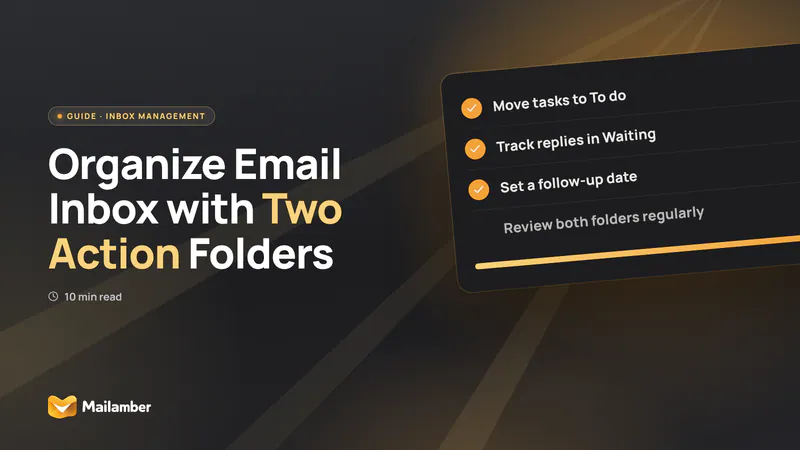
For a practical approach with two action folders, read how to organise an email inbox. The exact folder names matter less than knowing what each one means.
Myth: A batching routine should never change
A fixed routine can feel safe. Once you have chosen your windows, it may seem that changing them means the method has failed.
What is actually true
Your communication needs change. A deadline week, a holiday period, a new role or a different team can all alter the right rhythm. A schedule that works for writing may not work for customer support. A schedule that works on a quiet Friday may not work during a product launch.
Batching is a control you can adjust, not a promise to follow one timetable forever.
What to do instead
Review your rhythm once a week for a few minutes. Ask:
- Which messages genuinely needed a fast response?
- Which interruptions were unnecessary?
- Did I have enough time to process what I opened?
- Did anyone wait because my availability was unclear?
- Which window could move or become shorter?
If your inbox contains many different levels of importance, a priority view can reduce the amount you scan manually. Mailamber’s Smart Priority can help surface messages that deserve attention, while you still decide when to open and process the inbox. It is an aid to a routine, not a replacement for judgement.
A practical email rhythm you can adjust to your work
Try this simple setup for one week.
1. Define your response promise
Choose a realistic phrase such as “I check routine email in the morning, after lunch and before finishing.” Share it with the people who rely on you.
Do not promise a response time you cannot keep. If your role has formal service targets, use those as the starting point.
2. Separate routine from urgent
List the situations that genuinely need a faster route. Choose the channel for each one. Make sure the people involved know how to use it.
This step prevents routine email from carrying an emergency burden it cannot reliably support.
3. Choose your first windows
Place one window near the start of your work period, one after a natural break and one before you finish if you need a final handover. For creative or technical work, protect longer blocks between them.
If your work is highly interrupt-driven, use shorter and more frequent windows instead. The goal is deliberate checking, not a particular number.
4. Give each window an end
Set a timer if helpful. Process the inbox with the same decisions each time: reply, schedule, delegate, file or follow up.
When the window ends, leave a short note for any open task. This makes it easier to return to focused work without mentally carrying the whole inbox.
5. Adjust from evidence
After several days, change only one variable. Try moving a window, reducing notifications or making the urgent rule clearer.
A calmer routine should make important work easier to see. If it creates missed commitments, change it. If it reduces needless checking without harm, keep it.
FAQ
How often should I check email?
There is no single correct frequency. Start with two or three planned windows, then adjust for your role, deadlines and the cost of delay. People in live-support or incident roles may need a different system.
What if someone expects an immediate reply?
Explain when you normally check email and identify the right urgent channel. If the expectation is part of your job, agree a response standard with your manager or team rather than relying on personal guesswork.
Should I turn off all email notifications?
Not necessarily. Turn off routine alerts during focus time, but keep the agreed urgent route available. You can also use a quieter visual signal if that helps you notice messages without pulling you into the inbox.
Is inbox zero necessary for batching?
No. Batching works when messages are handled deliberately and next actions are clear. A small set of action and reference categories is often more useful than deleting or archiving everything simply to reach zero.
Can batching work on a phone?
Yes, but decide whether your phone is a routine processing tool or an urgent contact tool. If opening email on your phone tends to create unplanned checking, remove routine alerts and use the phone mainly for the channel your team has agreed is urgent.
email batchingfocusproductivityinboxwork habits
Newsletter
One calm email, every two weeks.
One email every two weeks: Mailamber news, guides on email and privacy, practical tips. No spam. Unsubscribe in one click.

Check your inbox
We’ve sent a confirmation link to . One click and you’re in.
Can’t find it? Take a look in your spam or Promotions tab.
Still nothing after a few minutes? Subscribe again with the same address and we’ll resend the link.

Read also
Official Mailamber guides on the same topic
- Automatic rules for incoming mailHow to create rules that mark as read, flag or move messages based on sender, subject, attachments or date, on your PC and on Android.
- AI assistant in the composerHow to use the AI assistant in the message sidebar: chat, quick actions, proofreading, inline suggestions with Ctrl+Space, and what gets sent to the AI.
- Writing an email: separate windows and attachmentsHow to write with Mailamber’s composer, open messages in separate windows, attach files by dragging them in, use the HTML editor and manage drafts.